Outputs were included with the Miradi v4.6 release. See the Miradi v4.6 Release Notes for a summary of the release and information on how to access the update.
- What are Outputs?
- Working with Outputs in Miradi online
- Information you can develop for Outputs
- Working with Outputs in Miradi Desktop
What are Outputs?
Outputs are the tangible products of project's Tasks, Activities, or Strategies. They can also be thought of as deliverables - or as the products of specific investments. In contrast to Results, which represent the changes or impacts you want to see in the system you are working in, Outputs represent the products, e.g. reports, workshops, communication materials, etc., that need to be delivered in order to achieve the desired results.
In Miradi, Outputs are very similar to Goals and Objectives. In addition to being elements of their parent Strategy / Activity / Task, you can relate Outputs to Goals and Objectives they are contributing to, and to Indicators that provide information about the status of Outputs and associated Results. You can define and update specific Due Dates for Outputs, and track progress toward the completion of Outputs.
Working with Outputs online
If you can’t find Outputs in Miradi online, you might need to update your project to Miradi 4.6.
Diagram view: Outputs appear in project Results Chain diagrams as blue bubbles in the lower right corners of Strategies or Activities.
Outputs can be accessed by clicking on the blue bubble. Here you can click an Output to access its Factor Properties, or add a new Output.
Tree views: In tree views such as the Actions view, Outputs are nested under their parent Strategy, Activity or Task. If you do not see your Outputs, make sure they are checked under the Factor Types filter (3).
Data Views: Data Views provide a spreadsheet-like tool for viewing, analyzing and exporting project data. Data is not editable in Data Views. Outputs are included in the Strategy + Activity Progress Table. In the upper right corner of the project page select Data Views and then Strategy + Activity Progress Table. (Data Views can also be accessed under REPORTS & DATA > Data Views.)
In this view, Outputs are included by default as rows and can be shown in the table as columns using the tools on the right. You can sort and filter the Outputs by clicking on the column headers, and export the complete table or filtered table (.csv or .xsl) in the upper right. With appropriate permissions, you can also save Custom Data Views.
Adding an Output to a Strategy, Activity or Task in Miradi online
Outputs are added to their parent factor (Strategy, Activity, or Task) in the same way that other elements (e.g. Objectives, Goals, Indicators) are added: Select the parent factor in diagram view or tracking tree view and use the Factor Properties tools to add Outputs. In diagram view, Outputs can also be added to Strategies and Activities directly from the factor in the diagram.
Diagram view: To add an Output to a Strategy or Activity from the diagram, find the small square in the lower right of the Strategy or Activity. If you have already created Outputs the square will be blue. If this is your first output for the factor, it will be clear.
Another way to add or edit Outputs is to select the parent factor and open the Factor Properties panel (upper right of the diagram area). Use the elements menu under the factor name to open Strategy Outputs or Activities and Outputs.
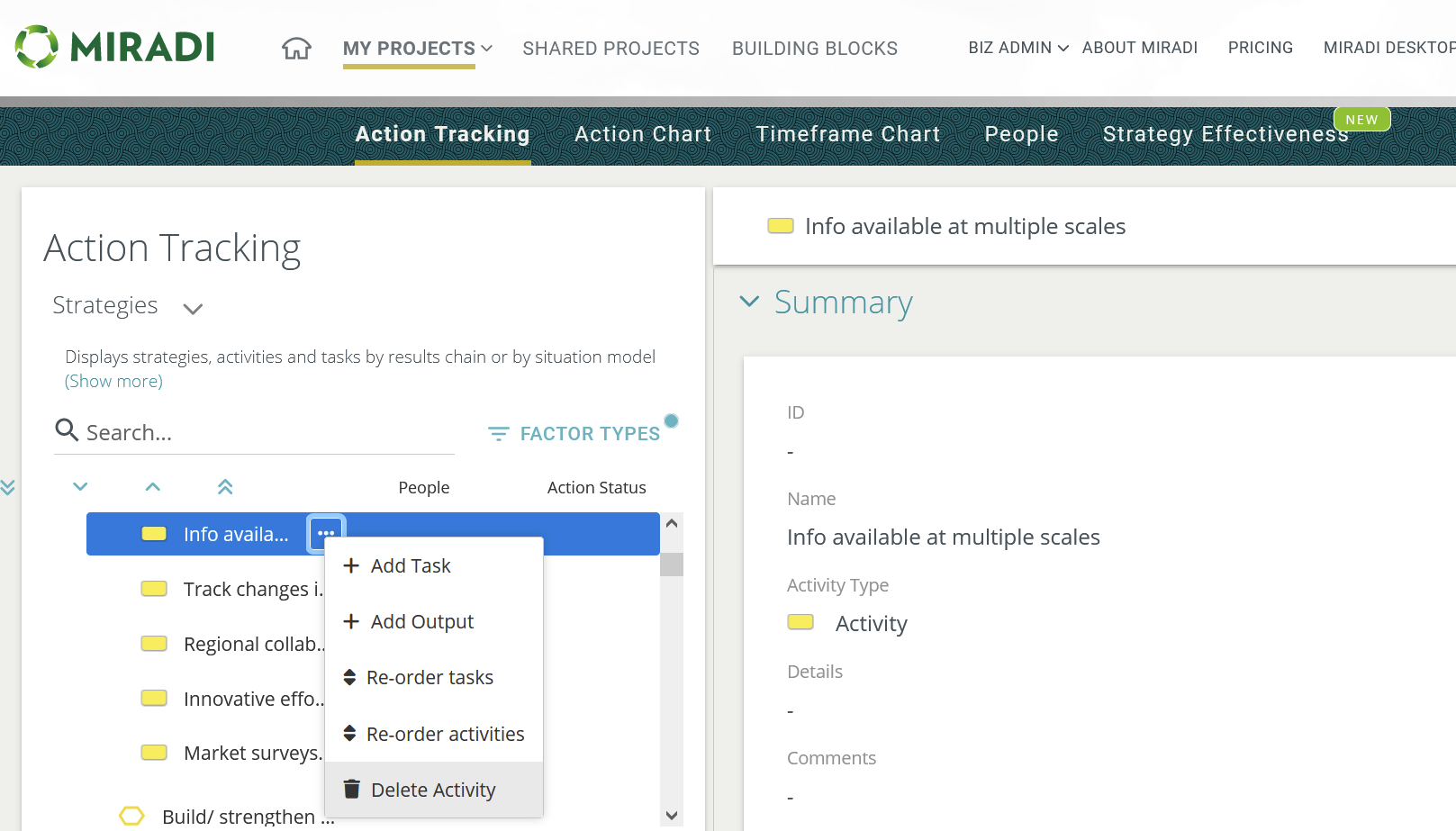
Tree views: Outputs can be added to Strategies, Activities or Tasks in any of the tree views under THEORY OF CHANGE, WORK PLANNING, or PROGRESS TRACKING. In the example below under the Actions tree view (2), select the parent factor to which you want to add an Output (3) and right-click or use the "..." menu to +Add Output.
To move, copy, or share Outputs in tree view, click on an Output and drag it over the name of a different Strategy, Activity or Task. Miradi will ask you whether you want to Copy, Move or Share the Output to the new parent factor.
Information you can develop for Outputs
Outputs are very similar to Goals and Objectives in Miradi. In addition to the standard Summary information (ID, Name, Details, Comments), the following information can be developed for Outputs:
- Due Date
- Progress Report (Planned, On Track, Completed, etc)
- Related elements: Goals, Objectives, Indicators
Use the Factor Properties tool in diagram view or tracking tree view (shown below) to develop and manage detailed content for each Output.
Working with Outputs in Miradi Desktop
In Miradi Desktop, Outputs function very similarly to other child factors such as Goals, Objectives, Indicators and Activities: Outputs are added from within the properties dialog for each parent factor.
If you can’t find Outputs in Miradi Desktop, you might need to update your software and your project to Miradi 4.6.
Diagram view: In Results Chain diagrams, Outputs show up as blue squares in the lower right corner of Strategies and Activities. Show/hide outputs from the menu on the left of the diagram.
To add an Output to a parent factor (Strategy or Activity), select the factor in the diagram and double click to open the properties window. Navigate to the Summary tab and find Outputs in the menu on the left of the window for Strategies.
For Activities, you can find Outputs from within the Strategy window by clicking on the Activities tab, then selecting an Activity (e.g. R1-1 in the example below) and find Outputs in the left-hand menu.
You can also find Outputs related to an Activity by clicking directly on an Activity in the diagram and finding Outputs in the left-hand menu.
Comments
2 comments
Hello! Can you clarify where to add a 'task' to an activity?
Hi Kelly! You can add a task to an activity in the Action Tracking tree, selecting the correct activity and clicking on the "..." beside the activity. Hope that helps.
Please sign in to leave a comment.